Why Does My Bluetooth Keep Disconnecting? Causes and Fixes in Order
The Song Stops Mid-Chorus for No Visible Reason
Almost every dropout comes from interference, body blocking, a multipoint conflict, or a stale pairing, and each has a cheap fix. If you drop out with a laptop nearby, disable multipoint first, and if the phone rides in a pocket, move it to the accessory side.
The music cuts out for half a second, comes back, then cuts again. Your phone sits in your pocket, the earbuds sit in your ears, and nothing has moved.
Bluetooth dropouts feel random, which is why people live with them for months. They are rarely random. Almost every disconnect traces back to one of four causes, and each cause leaves a recognizable pattern.
This guide walks through those causes, then lays out the fixes in the order that rules out the most likely culprits first. The same logic applies to earbuds, speakers, keyboards, and car stereos, because they all share one radio standard.
Four Causes Behind Most Bluetooth Dropouts
Nearly every recurring disconnect comes from interference, connection conflicts, weak signal, or software.
Interference. Bluetooth shares the 2.4 GHz band with Wi-Fi, microwaves, and every other Bluetooth device nearby. Crowded airwaves corrupt packets, and the audio stutters or drops.
Connection conflicts. Multipoint pairing, stale pairing records, and two devices competing for the same accessory confuse the link. The connection then bounces between hosts or dies outright.
Weak signal. Distance, walls, and your own body attenuate the radio. A phone in a back pocket on the opposite side of your head loses several meters of effective range.
Software. Firmware bugs, an outdated operating system, or aggressive battery optimization can kill a healthy link. These cases look the most mysterious and often have the easiest fix.
Radio Interference Crowds a Narrow Band
Bluetooth transmits at low power inside a slice of spectrum that almost everything else also uses. Wi-Fi routers, wireless mice, baby monitors, and microwave ovens all emit energy in the 2.4 GHz range.
The Bluetooth SIG technology overview puts both radio types between 2.402 and 2.480 GHz. Classic Bluetooth, used by most audio, hops across 79 channels with 1 MHz spacing, while Bluetooth LE uses 40 channels with 2 MHz spacing.
That whole slice is only 78 MHz wide, and Wi-Fi, microwaves and every nearby headset share it. Hopping works well in a quiet room and struggles in a gym, a train station, or an office full of access points.
The classic signature of interference is location-dependent dropouts. Audio that stutters in the kitchen but behaves in the bedroom points at the microwave or the router, not the earbuds.
USB 3.0 ports deserve a special mention. An Intel white paper on USB 3.0 interference warns that some USB 3.0 devices and cables leak noise into the 2.4 GHz band. That is why a dongle plugged in next to a busy USB 3.0 drive can stutter constantly. Moving the dongle to a short extension cable away from the port often cures it.
Distance and Your Own Body Block the Signal
The Bluetooth SIG range guide says reliable range runs from less than a meter to more than a kilometer. Transmit power alone spans -20 dBm (0.01 mW) to +20 dBm (100 mW), a 10,000-fold gap between the weakest and strongest radios.
The same guide lists walls, windows, metal and concrete as obstacles that weaken the signal. Real rooms rarely give a small earbud its best case.
Water absorbs 2.4 GHz energy efficiently, and a human body is mostly water. A phone in a back pocket transmits through your torso to reach the opposite ear, and that single obstacle can cost more range than a wall.
Concrete, brick, and metal shelving cut the signal further. A speaker two rooms away from its source sits at the edge of a reliable link, and any added interference pushes it over.
The fix costs nothing. Keep the source device on the same side as the accessory, out of pockets pressed against your body, with a clear line when possible. If dropouts happen only while the phone rides in a gym pocket or a coat, this is the cause.
Multipoint and Stale Pairings Fight Over the Connection
Modern earbuds often connect to a phone and a laptop at once, and that convenience is a leading cause of mystery disconnects. Our guide to multipoint earbuds covers how the switching logic works.
The handoff problem. The firmware decides which device owns the audio, and a notification ping on the idle device can grab the link mid-song. To you, the music simply stopped.
Stale pairing records. Devices store connection keys from every pairing. Corrupted or outdated records produce the connect-then-drop-in-seconds pattern, where the accessory appears connected but audio never stabilizes.
Too many remembered hosts. Earbuds that remember eight devices may try to reach old ones at power-on. A forgotten tablet waking up across the house can steal the connection from your phone.
The pattern to watch for is dropouts that coincide with another device being nearby and awake. If the audio dies whenever the work laptop opens, the culprit is not interference.
Codec Mismatches and Old Firmware Fail Quietly
Software problems produce dropouts with no environmental pattern at all, which makes them the most frustrating category.
Firmware bugs top the list. Vendors ship connection-stability fixes through companion apps, and release notes on those updates frequently mention dropout repairs. Buds that have never seen the companion app since unboxing are running launch-day radio code.
Codec negotiation matters too. A phone pushing a high-bitrate codec near the edge of signal strength drops audio sooner than one on a modest codec. Forcing SBC or AAC in developer settings stabilizes some flaky links.
Battery optimization is the sneakiest case. Aggressive power-saving modes on Android can suspend the Bluetooth process in the background. Dropouts that only happen with the screen off, and stop the moment you wake the phone, point directly at this setting.
Fixes in the Order Worth Trying
Work through this sequence and stop when the dropouts stop. Each step rules out a category before you spend effort on the next.
Step 1: re-pair the device. Remove it from the Bluetooth list, restart both devices, and pair fresh. This clears corrupted records, the single most common cause.
Step 2: update everything. Open the companion app, install firmware and OS updates, and give the buds a full charge cycle afterward.
Step 3: kill the conflicts. Disable multipoint, or disconnect every second device. Test for a full day with a single host to isolate handoff problems.
Step 4: change the environment. Move away from the router, off the USB 3.0 port, and keep the phone on the accessory side of your body.
Step 5: check the software settings. Exempt Bluetooth from battery optimization on Android, and toggle codecs in developer options if the link still stutters.
Step 6: test with a second phone. If dropouts follow the accessory, the radio or antenna is failing, and a warranty claim beats further tweaking.
Earbud-specific failures, like one bud dying while the other plays, have their own diagnostic path. Our guide to earbuds cutting out walks through those cases separately.
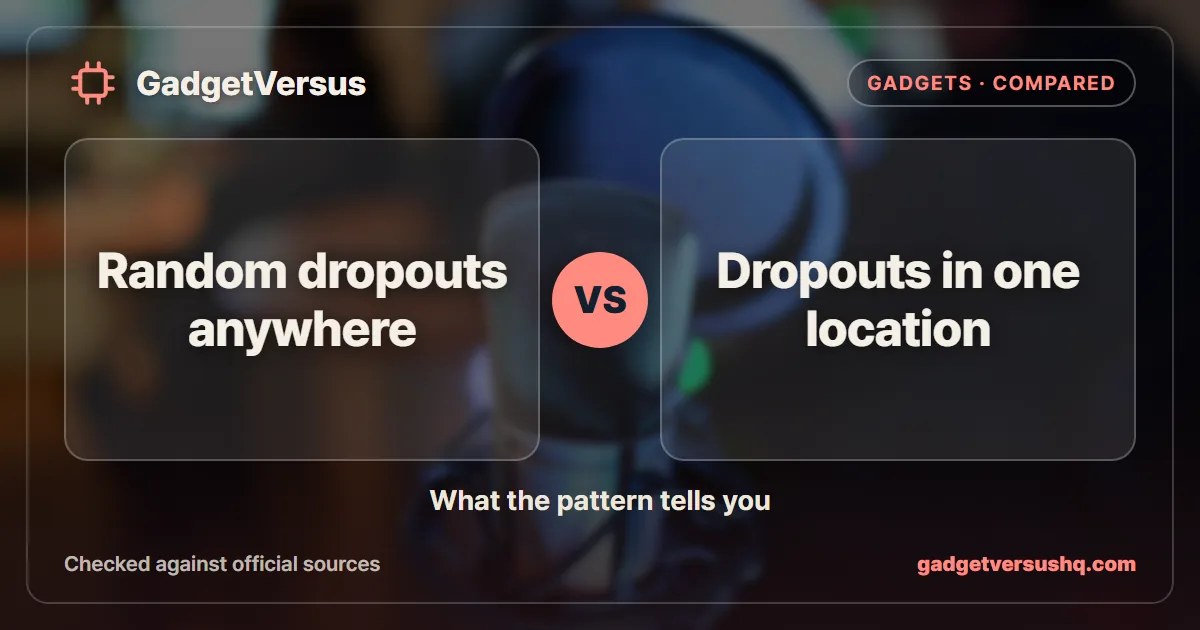
Symptom Patterns Matched to Likely Causes
| Pattern | Most likely cause | First fix |
|---|---|---|
| Drops only in one room or spot | Interference from router, microwave, USB 3.0 | Relocate the noise source or yourself |
| Drops when phone is in a pocket | Body blocking, weak signal | Same-side pocket or armband |
| Drops when laptop or tablet is nearby | Multipoint or auto-connect conflict | Disable multipoint, forget old hosts |
| Connects, then drops within seconds | Corrupted pairing record | Full re-pair on both devices |
| Drops only with screen off | Battery optimization killing Bluetooth | Exempt Bluetooth from power saving |
| Drops everywhere, any host | Firmware bug or failing hardware | Update firmware, then warranty |
Which Fix Fits Your Disconnect Pattern

Match your situation rather than running every fix blindly.
Commuters in dense crowds: Accept some stutter at rush hour, but keep the phone chest-high and on the accessory side. Crowd interference has no permanent fix.
Desk workers with a laptop and phone: Disable multipoint or set the laptop to not auto-connect. Handoff conflict is overwhelmingly the cause in this setup.
Home listeners near a router: Move the router channel to 5 GHz for Wi-Fi traffic, or add distance. Check the microwave alibi before blaming the speaker.
Gym users with phones in pockets: Body blocking dominates here. An armband or a chest-facing pocket usually ends the problem without a single settings change.
Drivers with a car stereo: Delete the car from the phone and the phone from the car, then pair fresh. Car head units keep notoriously fragile pairing records.
Anyone with dropouts on every host: Update firmware, then test on a second phone. Two hosts with identical failures means the accessory itself is the fault.
Mistakes That Make Dropouts Worse
The most common mistake is toggling Bluetooth off and on, seeing one clean hour, and declaring victory. That resets the session without touching the cause, so the dropouts return.
Another is deleting the device from only one side. Both the phone and the accessory keep pairing records, and a fresh pair on one side against stale keys on the other reproduces the fault.
People also stack workarounds instead of isolating. Changing codec, position, and multipoint on the same day fixes nothing you can name, and the problem creeps back with no known cure.
Blaming the newest device is a trap too. A new phone that stutters with old earbuds often exposes an earbud firmware bug that the old, slower phone never triggered.
Finally, skip the metal desk. Laptops on metal surfaces with the accessory behind the lid lose several meters of effective range, and no software setting recovers it.
A Radio Problem You Can Actually Diagnose
Bluetooth dropouts feel like bad luck, but they behave like any radio fault. Interference, conflicts, signal blocking, and software each leave a distinct fingerprint, and the pattern of your disconnects names the suspect.
Run the fix sequence in order, change one variable at a time, and note when the pattern shifts. Most people never get past step two, because a re-pair and a firmware update clear the majority of chronic cases.
If the problem survives a second host device, stop tweaking and use the warranty. Feature support and update policies vary by model, so confirm specifics on the maker’s official site as of 2026.
FAQ
Why does my Bluetooth only disconnect in crowded places?
Crowds concentrate hundreds of phones, watches, and earbuds into the same 2.4 GHz band that Bluetooth uses. Your device keeps transmitting, but its packets collide with everyone else's and arrive late or not at all. The connection survives, so it drops and reconnects in bursts instead.
Does a worn battery cause Bluetooth disconnects?
Not usually. A weak battery shortens playtime, but the radio keeps working until the charge is nearly gone. Repeated dropouts at half charge point to interference, pairing conflicts, or firmware rather than the cell itself.
Can multipoint pairing cause random disconnects?
Multipoint keeps your earbuds linked to two devices at once, and the firmware decides which one gets the audio. A silent notification on the idle device can yank the stream away mid-song. Disabling multipoint or disconnecting the second device removes that trigger.
Can a firmware update really fix disconnecting?
Yes, and it is one of the most overlooked fixes. Vendors ship connection stability patches through their companion apps regularly. A firmware update takes a few minutes and has resolved chronic dropout complaints on many models.
Why does re-pairing fix Bluetooth problems so often?
Removing the device and pairing again clears the stored connection keys and codec negotiation on both sides. Corrupted pairing records are a common cause of devices that connect and then drop within seconds. It costs two minutes and rules out a whole category of causes.
Sources
- Bluetooth SIG: Bluetooth Technology Overview — checked 2026-11-18
- Bluetooth SIG: Understanding Bluetooth Range — checked 2026-11-18
- Intel: USB 3.0 Radio Frequency Interference Impact on 2.4 GHz Wireless Devices — checked 2026-11-18
Some links may be affiliate links. We may earn a commission at no extra cost to you.
How this article was made: it was drafted with AI assistance from the official sources listed above, and its figures were checked against those pages on the dates shown. It is not based on personal hands-on testing.
Comments
Post a Comment